


How to use
Congratulations! Your X-Wall has been delivered and is ready to use. In this chapter, we explain step by step how to start up the X-Wall, which settings you can adjust, and how to easily launch your first game.
1. Starting Up the X-Wall
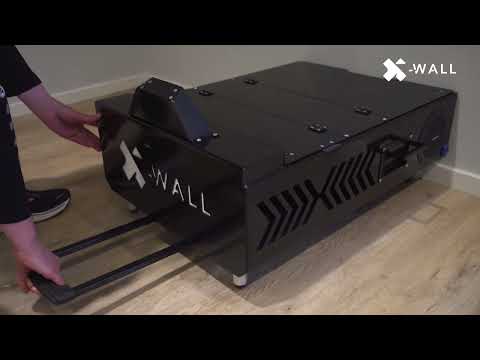
Everything you need is integrated into the X-Wall Portable: the X-Wall box, which contains the projector, 3D camera, and computer, as well as the X-Wall sensor. In most cases, everything is already connected, and you only need to follow the steps below:
Place the projector against the wall where you want the projection surface to be. Make sure the area is free from direct sunlight.
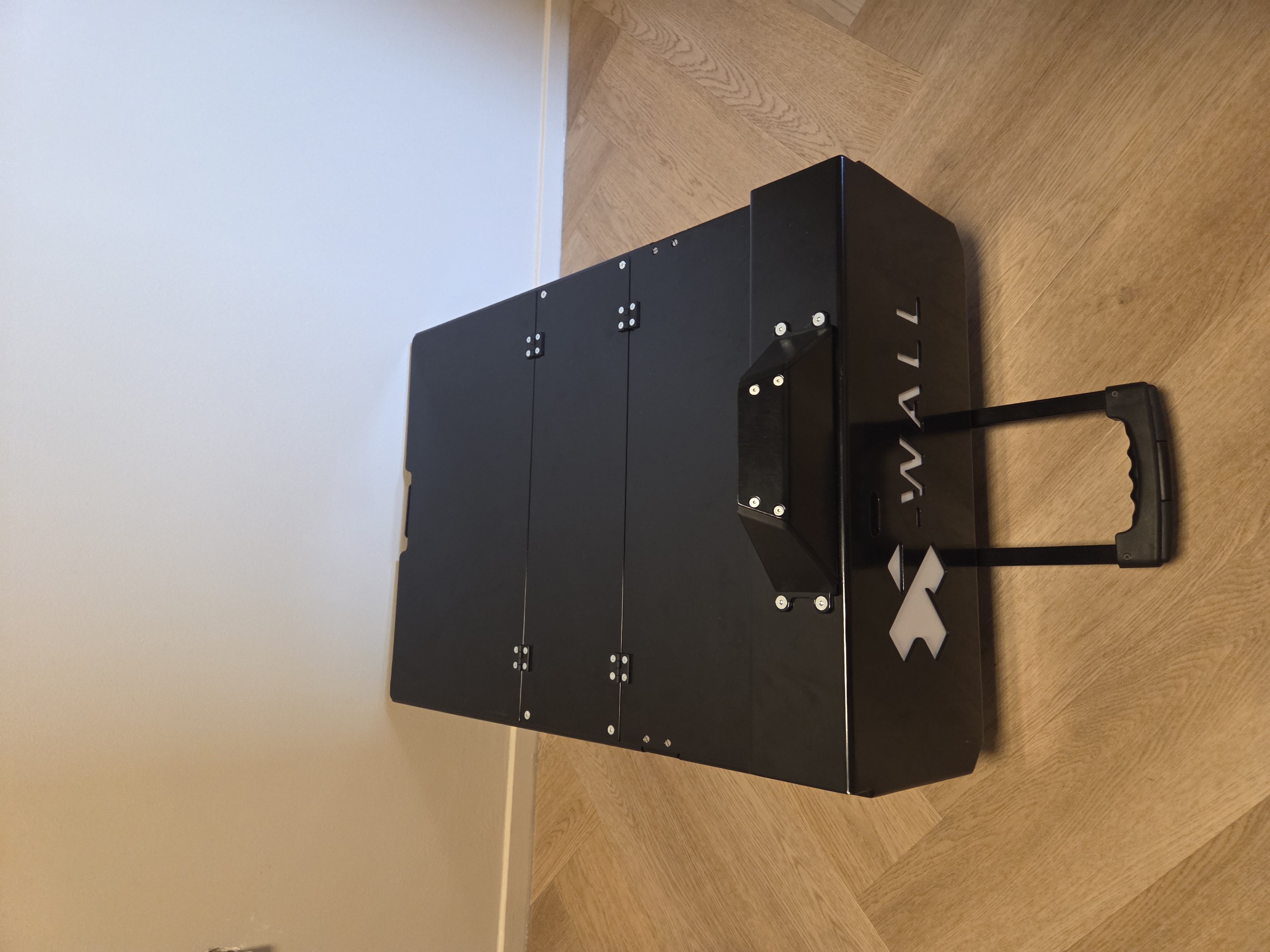
Slide the handle inward.
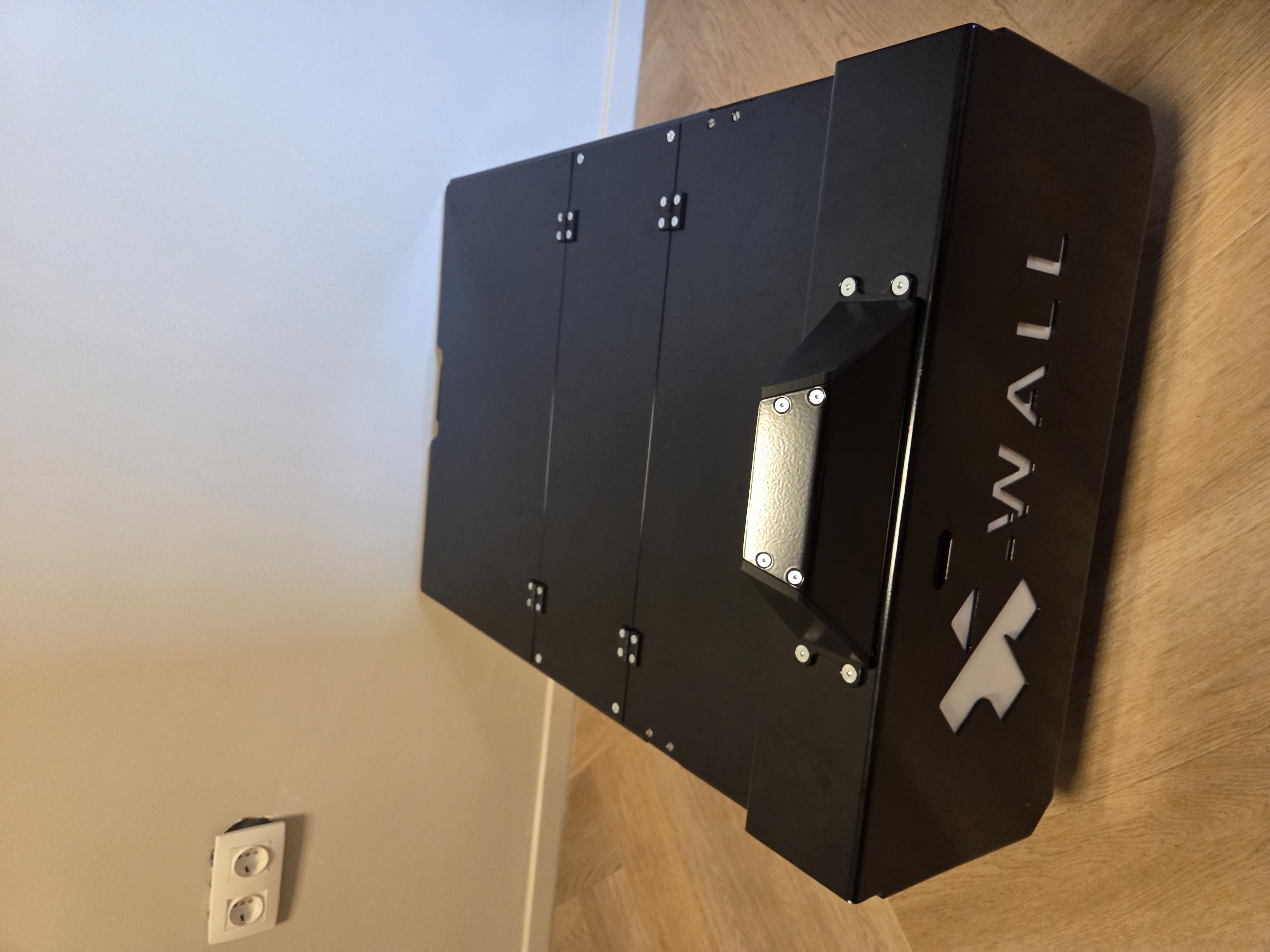
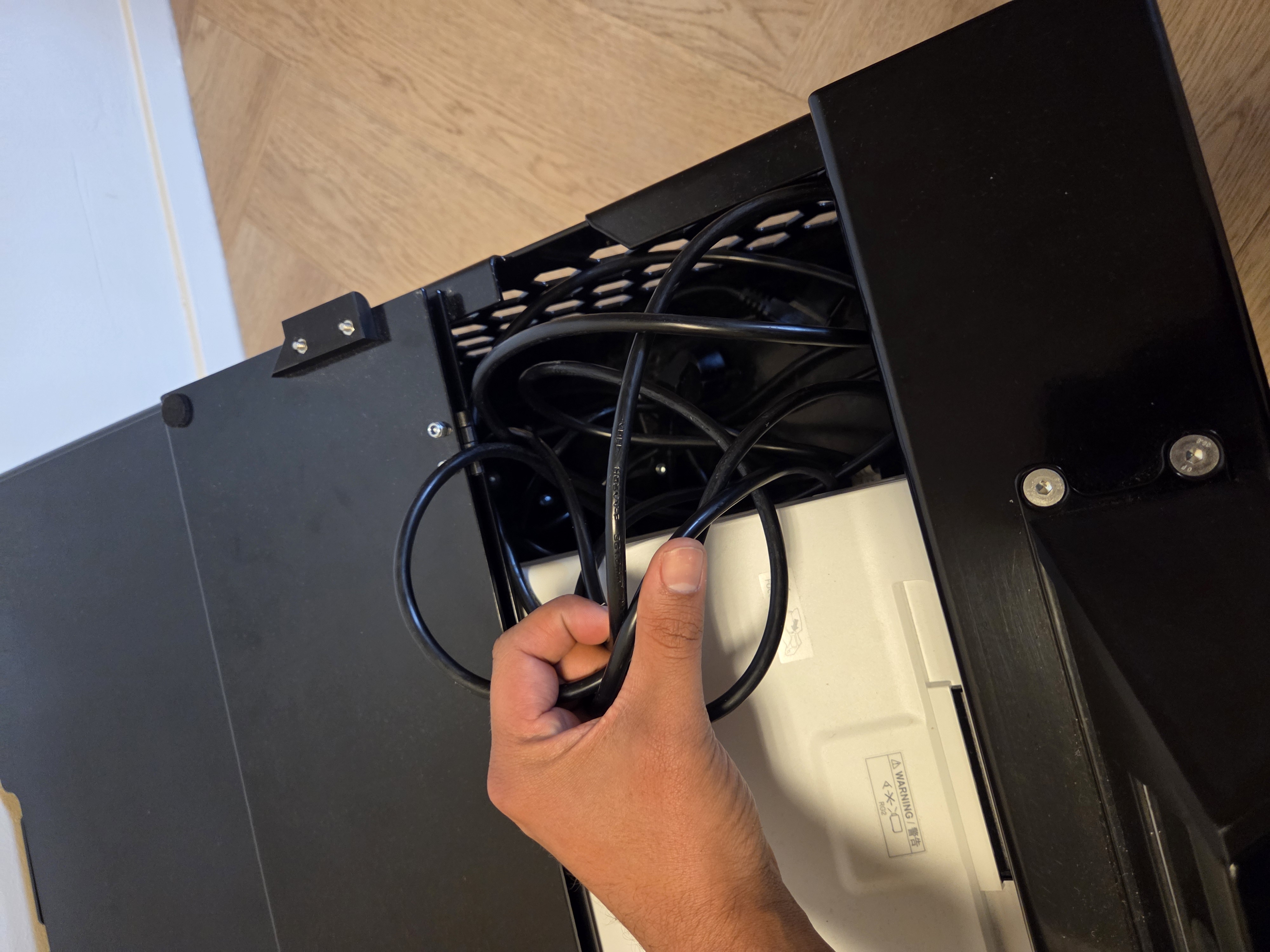
Remove the power cable from the X-Wall box.
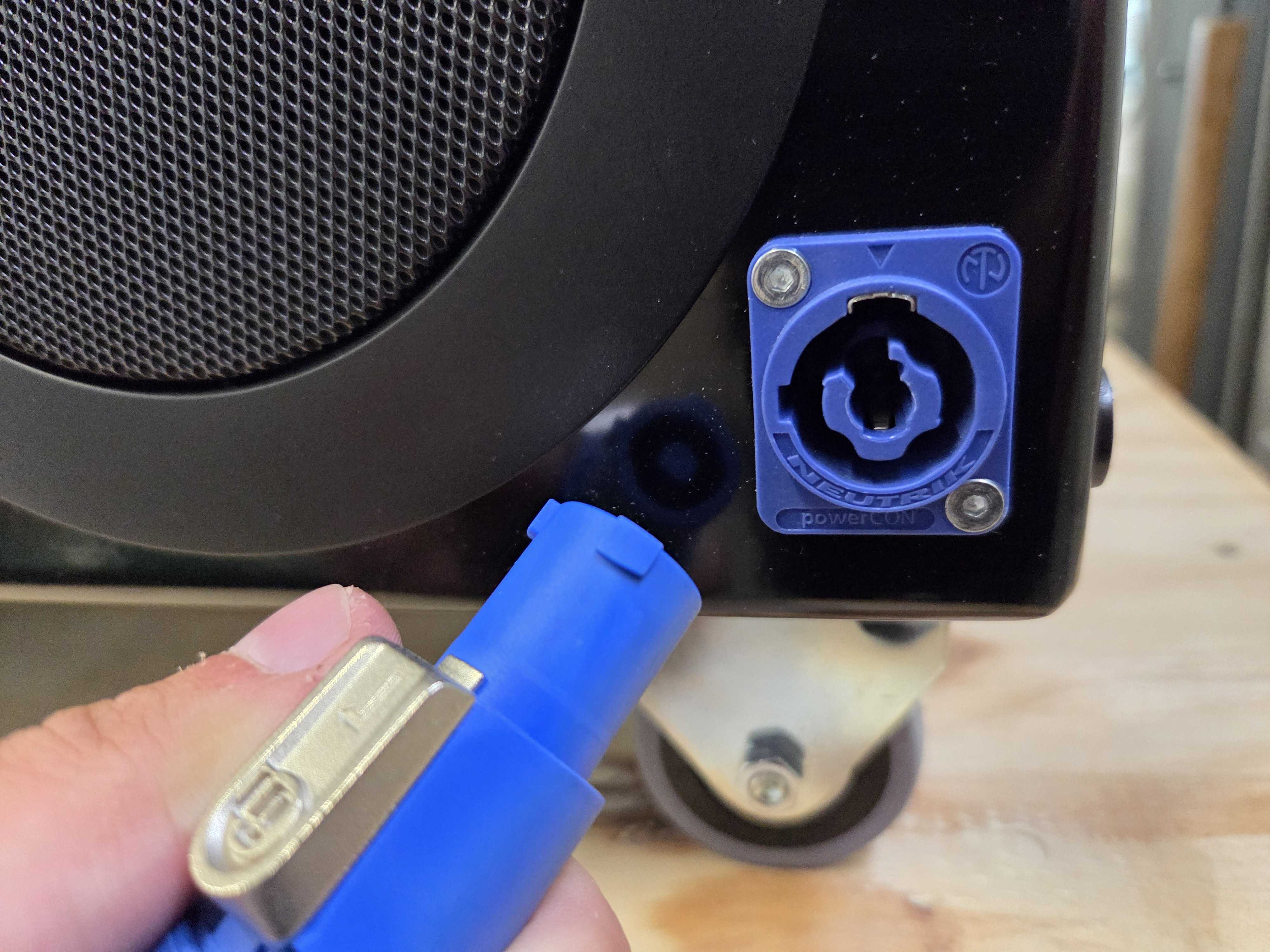
Go to the right side of the unit so you can connect the power cable. Insert the plug into the power socket and turn it a quarter turn clockwise.
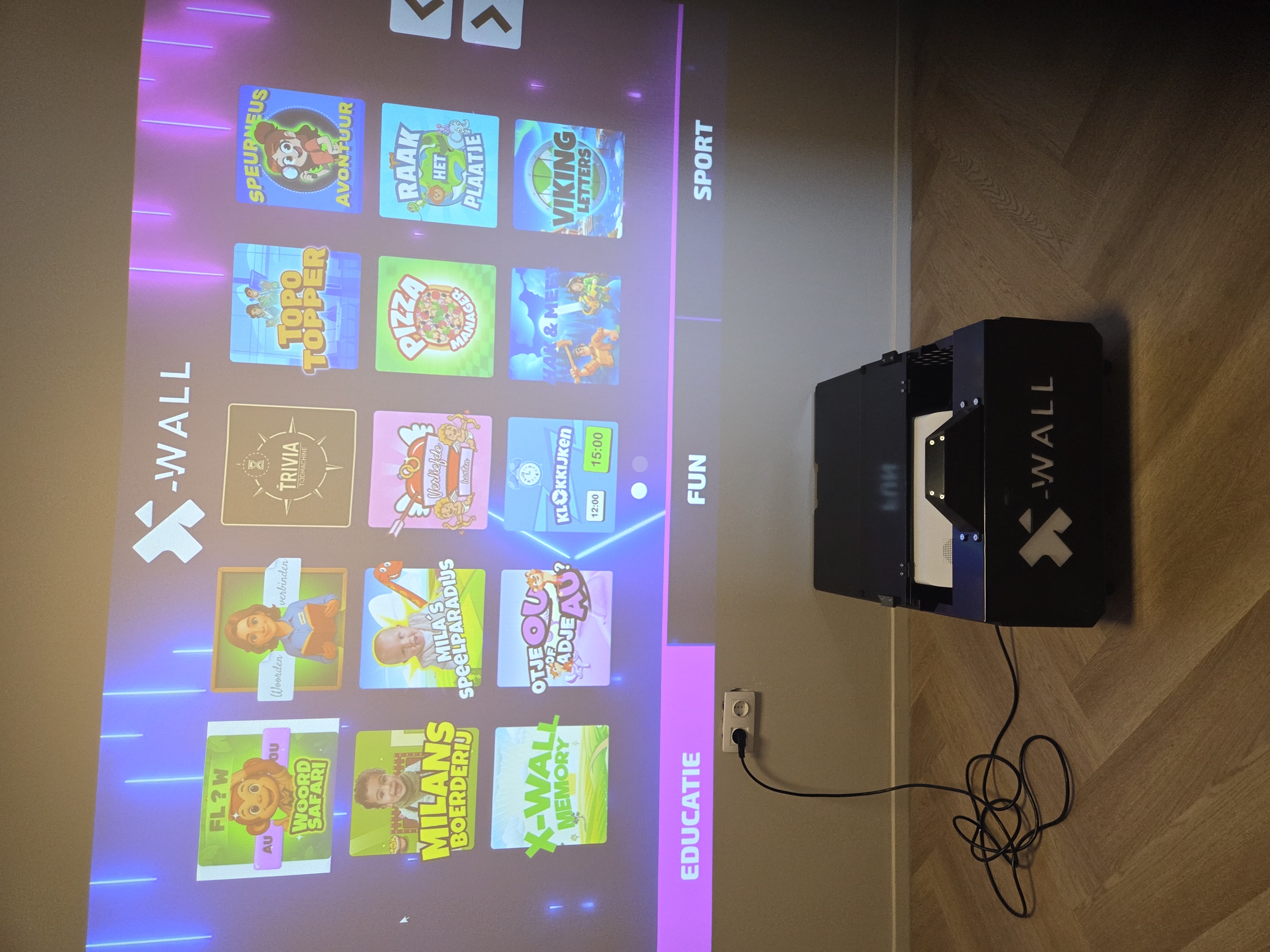
Position the X-Wall box tightly against the wall.
Wait until the system has fully started up, and you are ready to begin!
2. Navigating the X-Wall
The X-Wall is controlled by touch by default. In case of issues, the wireless keyboard or remote control can be used, for example to access the desktop or adjust the volume.
Here’s how to use the interface:
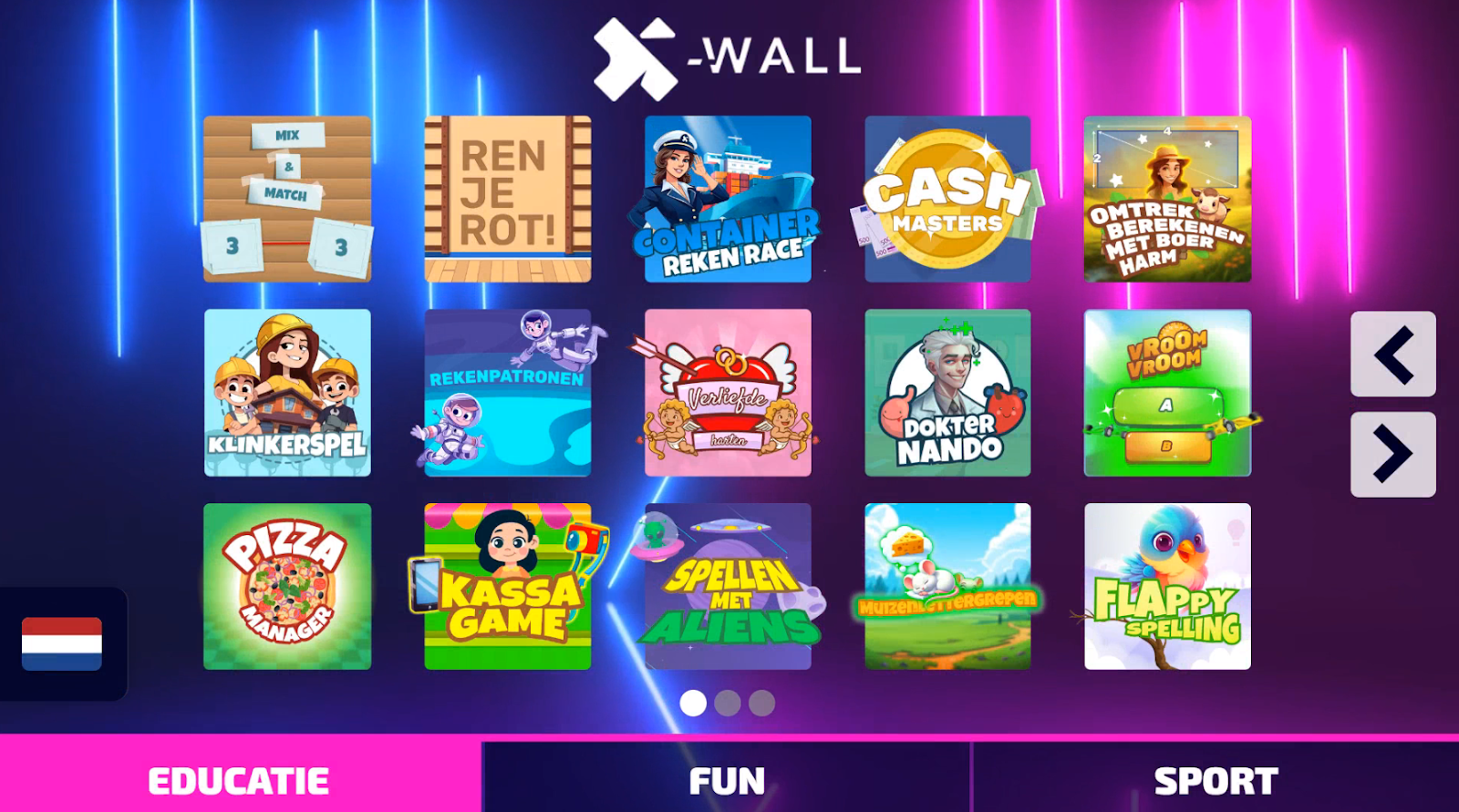
Categories: Each game is divided into one of three categories: Education, Fun, or Sport. By clicking one of the three categories at the bottom of the screen, you can browse through all available games. If there are more than 15 games within a category, you can use the arrows to scroll through all games in that category.
During gameplat: When launching a game, most games will first open a settings screen. Once you have selected the desired settings, you can start the game. After the game ends, you can choose to continue playing or return to the home screen to select another game.
Exiting a game: You can return to the home screen at any time during gameplay.
In the settings screen, click the “Back to home screen” button in the bottom-right corner.
During gameplay, press and hold the top-left corner of the screen for 5 seconds. Thanks to a built-in interaction, this will return you to the home screen.
If any issues occur, you can also use the included wireless keyboard to solve certain problems. A useful keyboard shortcut is:
Windows ( ) + D: This shortcut takes you back to the desktop. Only use this if the entire interface is not responding.
Was this article useful?
Your feedback helps us keep the Knowledge Base sharp.