


X-Wall Hub
The X-Wall HUB is the online customer portal where you manage your X-Wall. Here you can enable or disable games, manage users, and adjust settings. This environment is intended for teachers, administrators, and IT coordinators.
What can you do in the HUB?
In the X-Wall HUB, you have access to several important management functions:
✅ Manage games
Enable or disable games per category (Education, Fun, Sport). Only enabled games will appear on your X-Wall.👤Manage users
Add colleagues, give access to specific functions, or manage login details.🎮 Customize games yourself
Create your own questions, for example for the X-Wall AI Quiz or Fitquiz.
Logging in to the HUB
The X-Wall HUB can be accessed via:
🔗 https://admin.interactivexwall.nl/login
Use the login details you received during delivery. Have you forgotten your password, or do you not have access yet? Please contact us at support@interactivexwall.nl.
Activating or deactivating games
In the menu, go to “Locations”
At the correct location, click the game icon
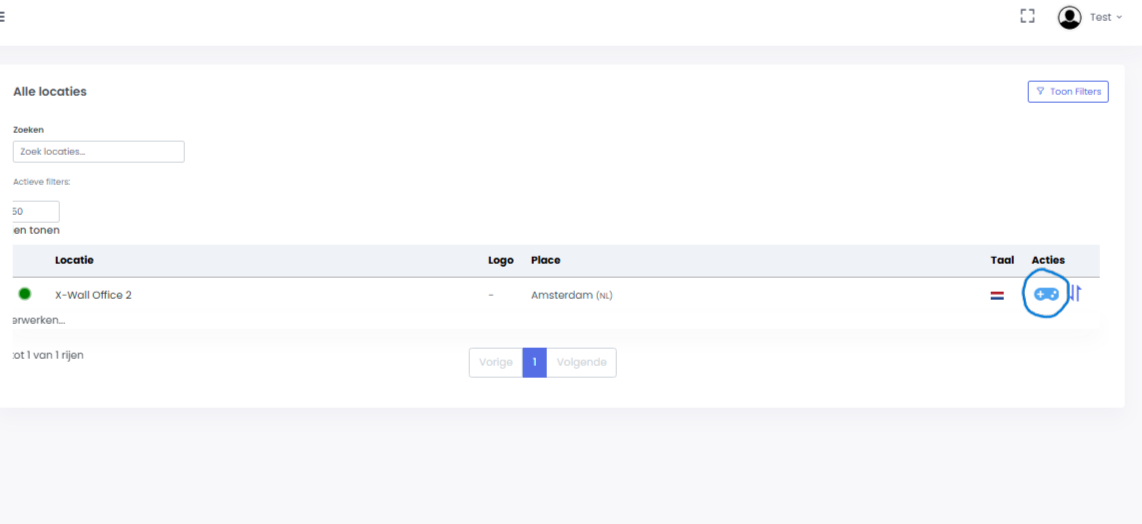
You will see an overview per category (Education, Fun, Sport)
Enable or disable games using the toggle switch
Click Save changes when you are done, the updates will automatically be applied to your X-Wall
💡 Tip: Only enable the games that match your target group or learning goals. This makes it easier for users to choose games on the wall.
Admin roles and access
Under “Users”, you can add users and set who has access to which functions:
Click the blue “+ Add new” button to add a new user
Fill in all required details
The new user will receive an email to create a password
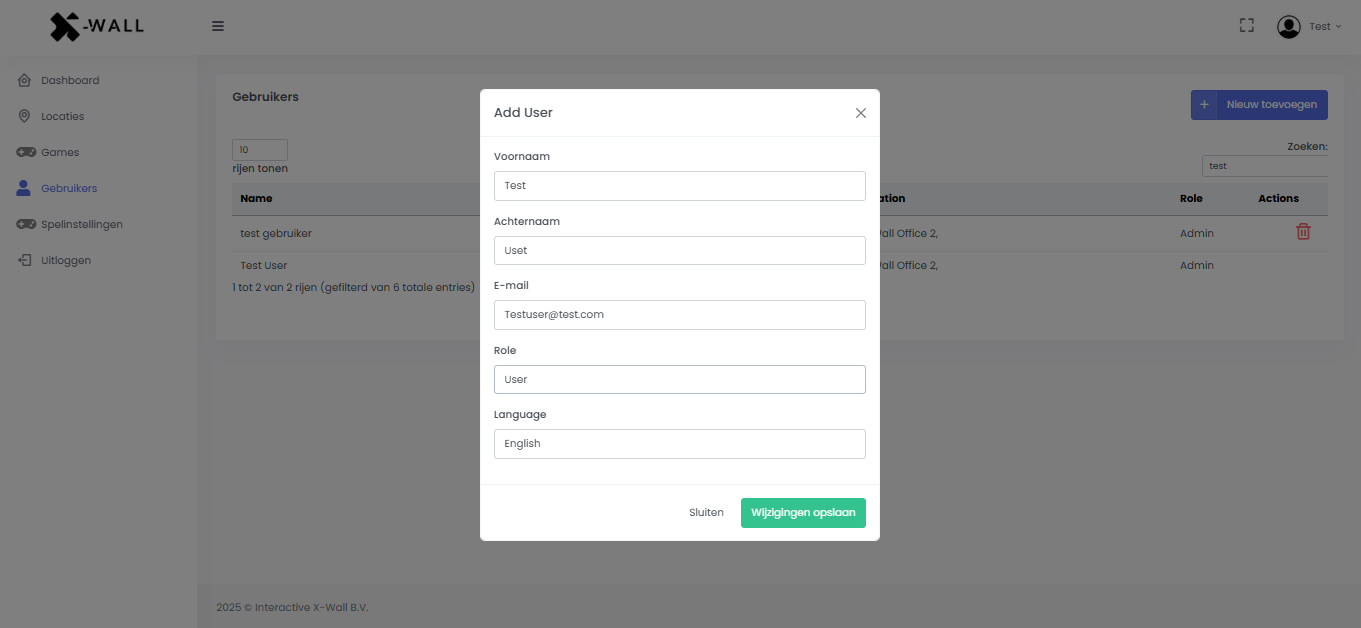
Make sure only authorized people have admin rights to prevent unwanted changes.
Content Studio
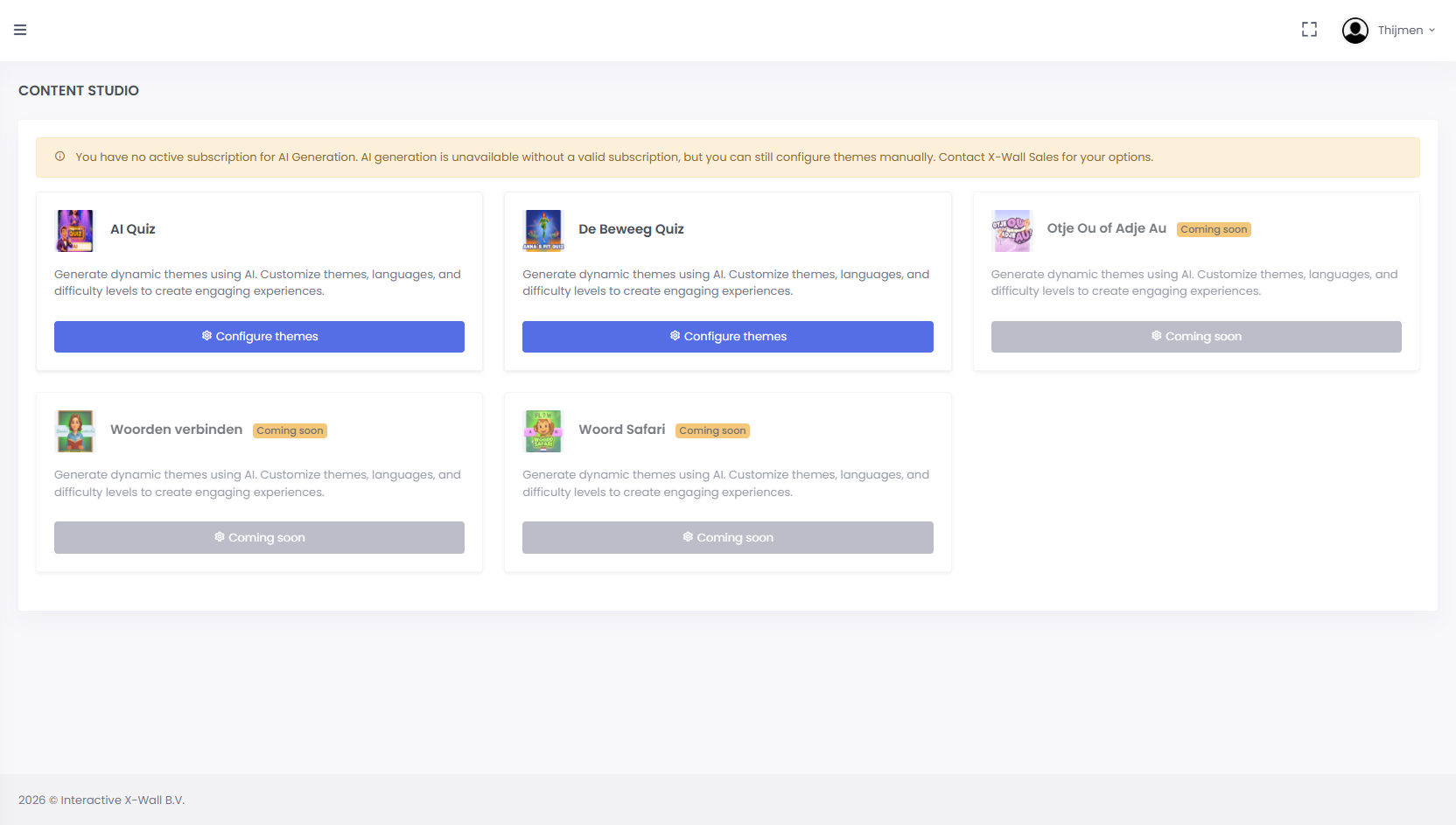
Go to Content Studio in the menu.
Select a game to which you want to add a quiz.
Click on “Configure themes”to browse existing themes or create new ones.If you see a yellow bar at the top of the screen, you do not have access yet. Please contact Support to request access to Content Studio.
Click on“+ Add new theme”to create a new quiz. Enter a title for your quiz and add questions manually.
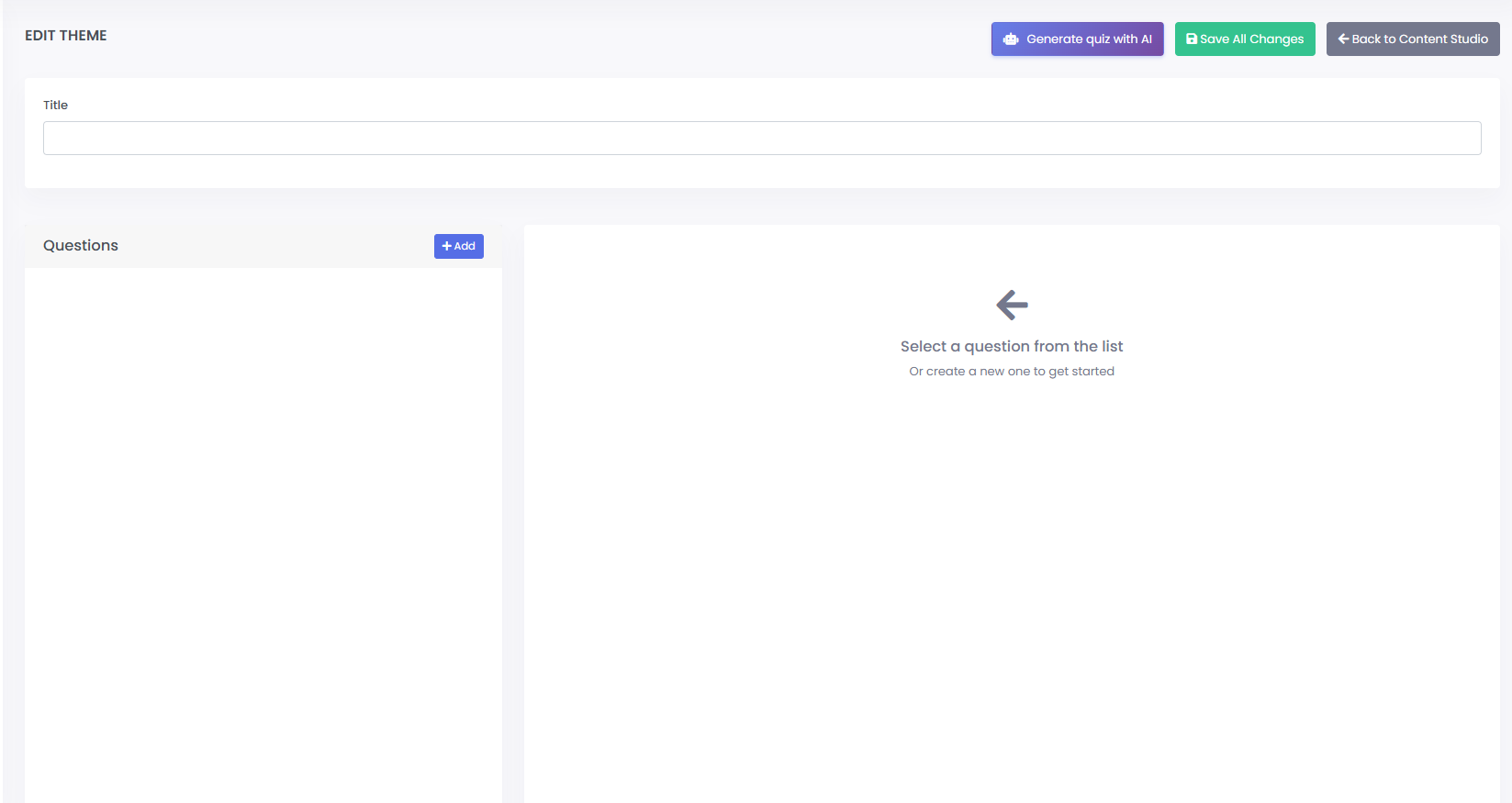
You can also generate a quiz automatically by clicking “Generate quiz with AI”.
If you generate the quiz make sure to click replace existing questions. Enter a clear prompt describing the type of quiz you want to create. You can upload documents to help the AI use the correct information.
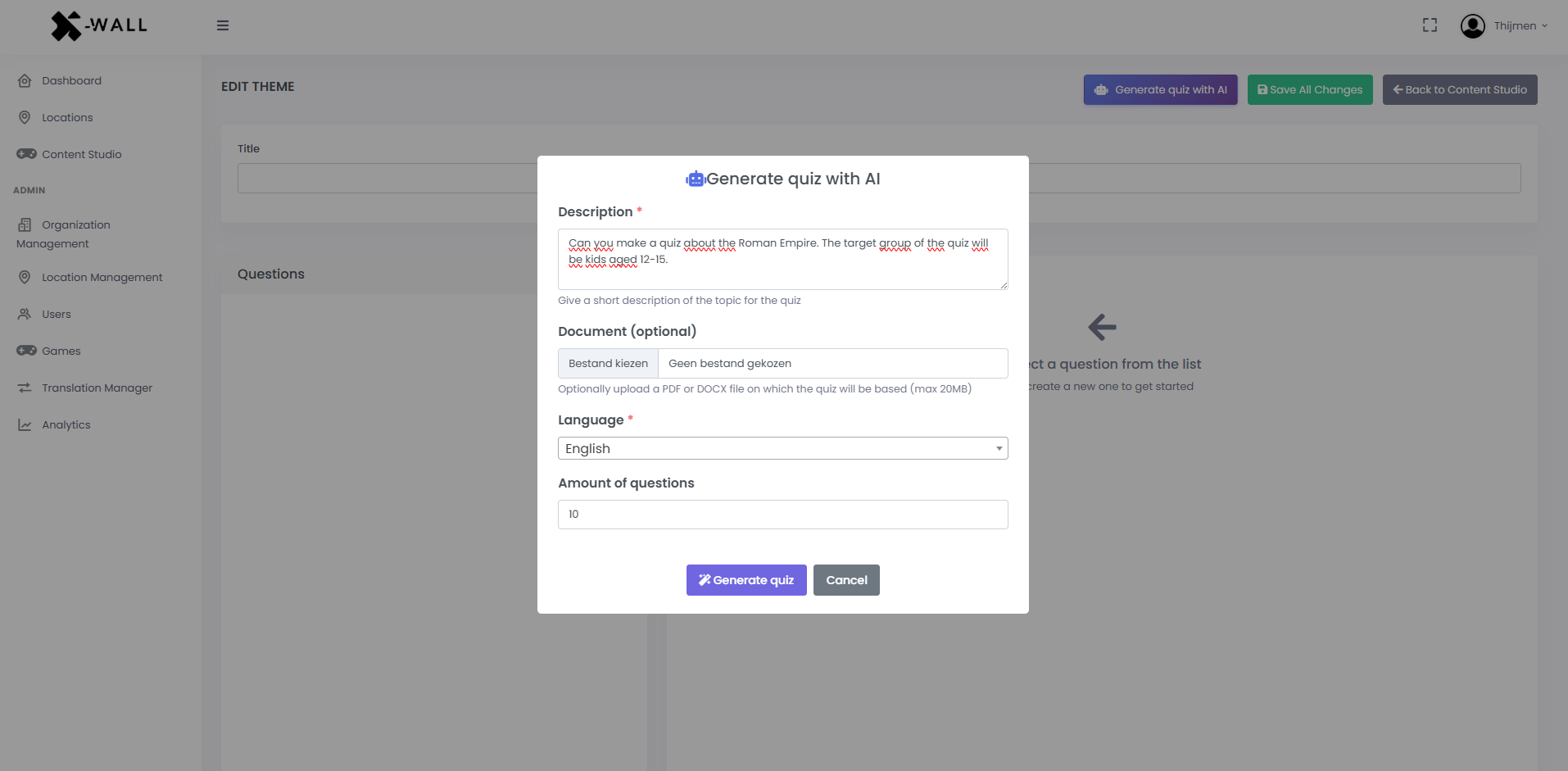
After generating the quiz, you can still edit the questions and answers. The first answer is always the correct one (this will be randomized during gameplay). Make sure to save all changes when you are finished.
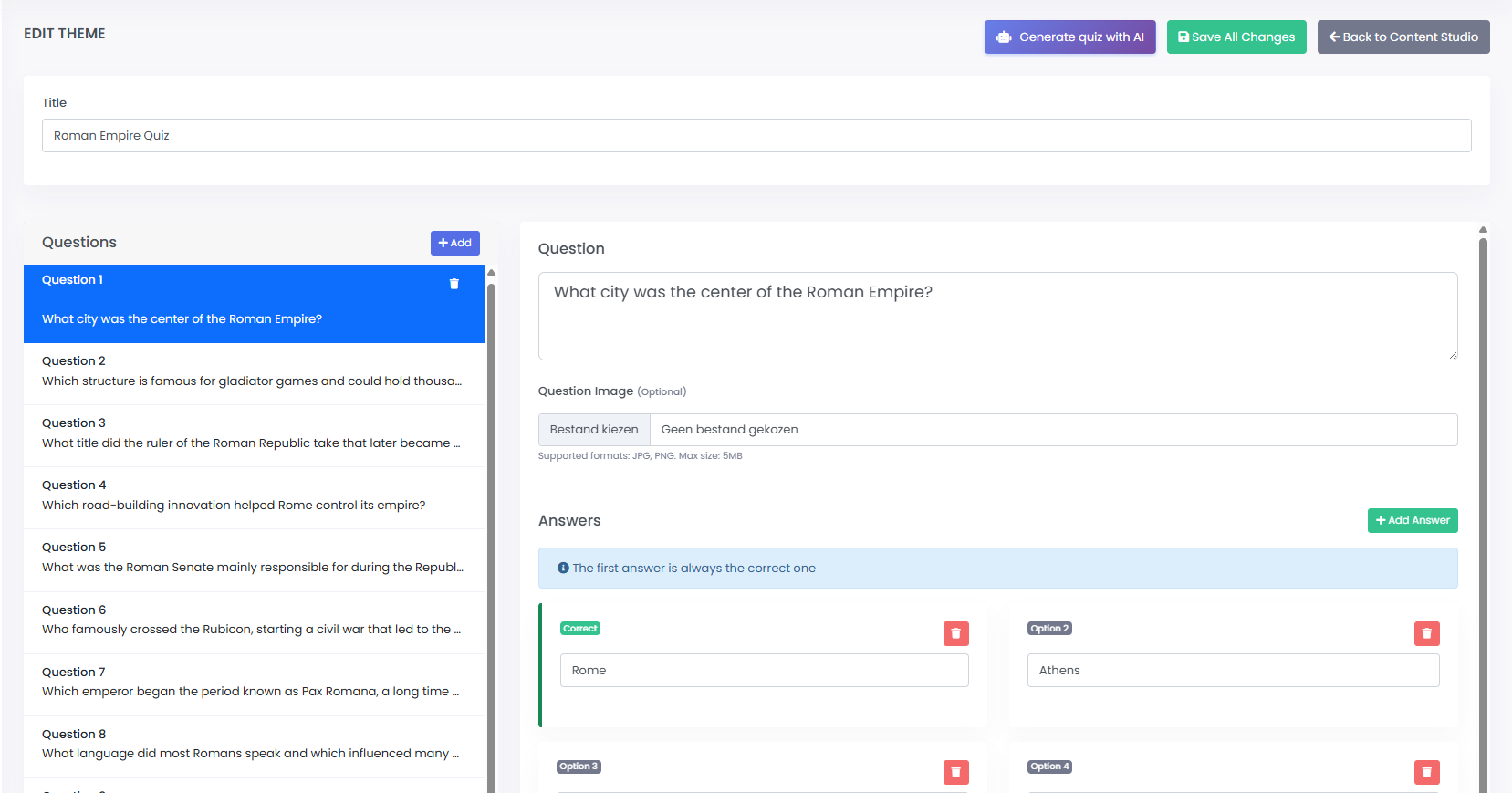
If your X-Wall is connected to the internet, the quiz will automatically be loaded into the game.
Was this article useful?
Your feedback helps us keep the Knowledge Base sharp.