

Projection falls over the wall
Is the projection too large for the wall, causing part of the image to fall outside the visible area?
Using the projector settings, you can easily reduce the size of the projection so it fits completely on the wall.
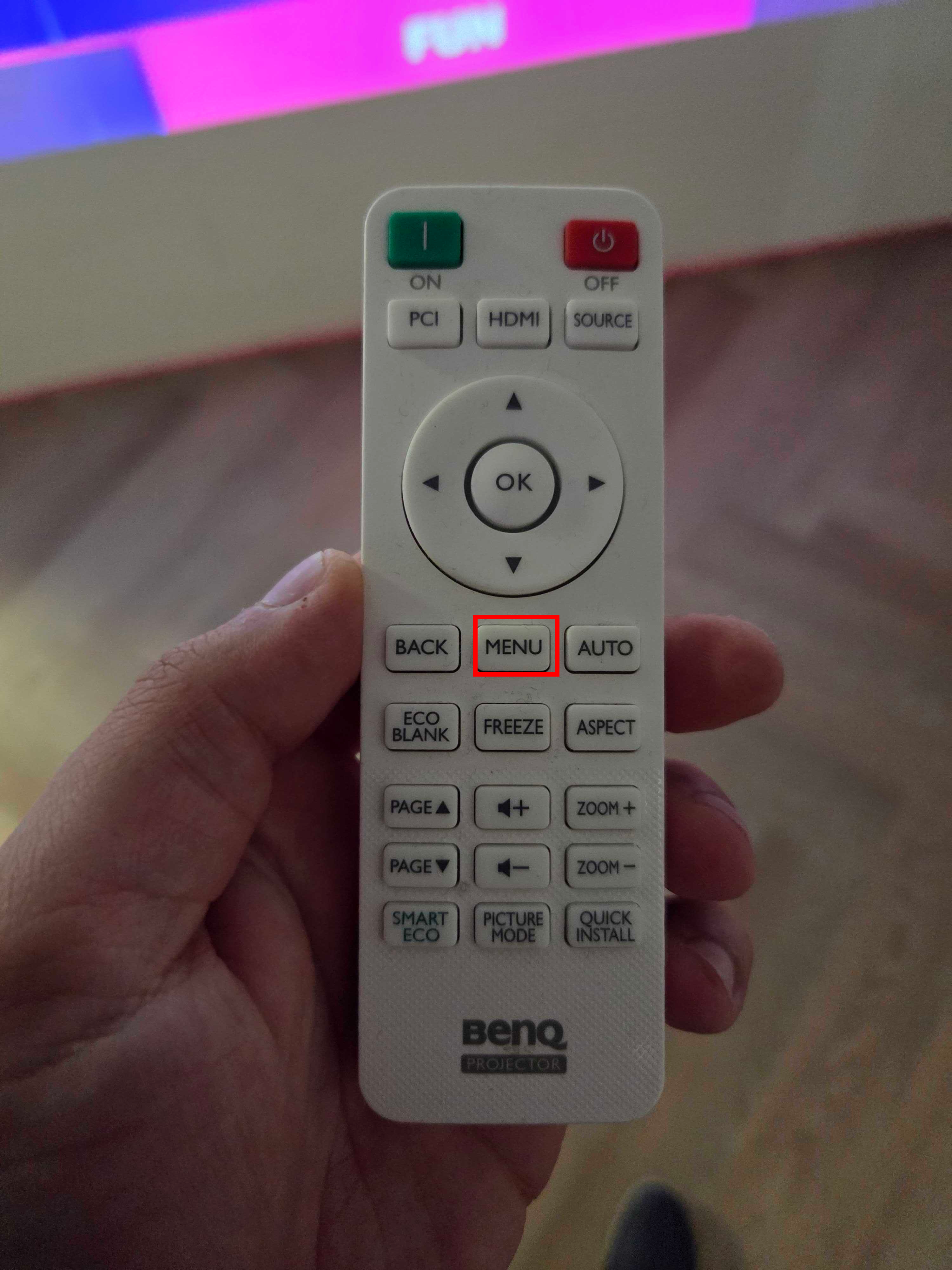
Step 1.
Take the projector remote control and press the “Menu” button.
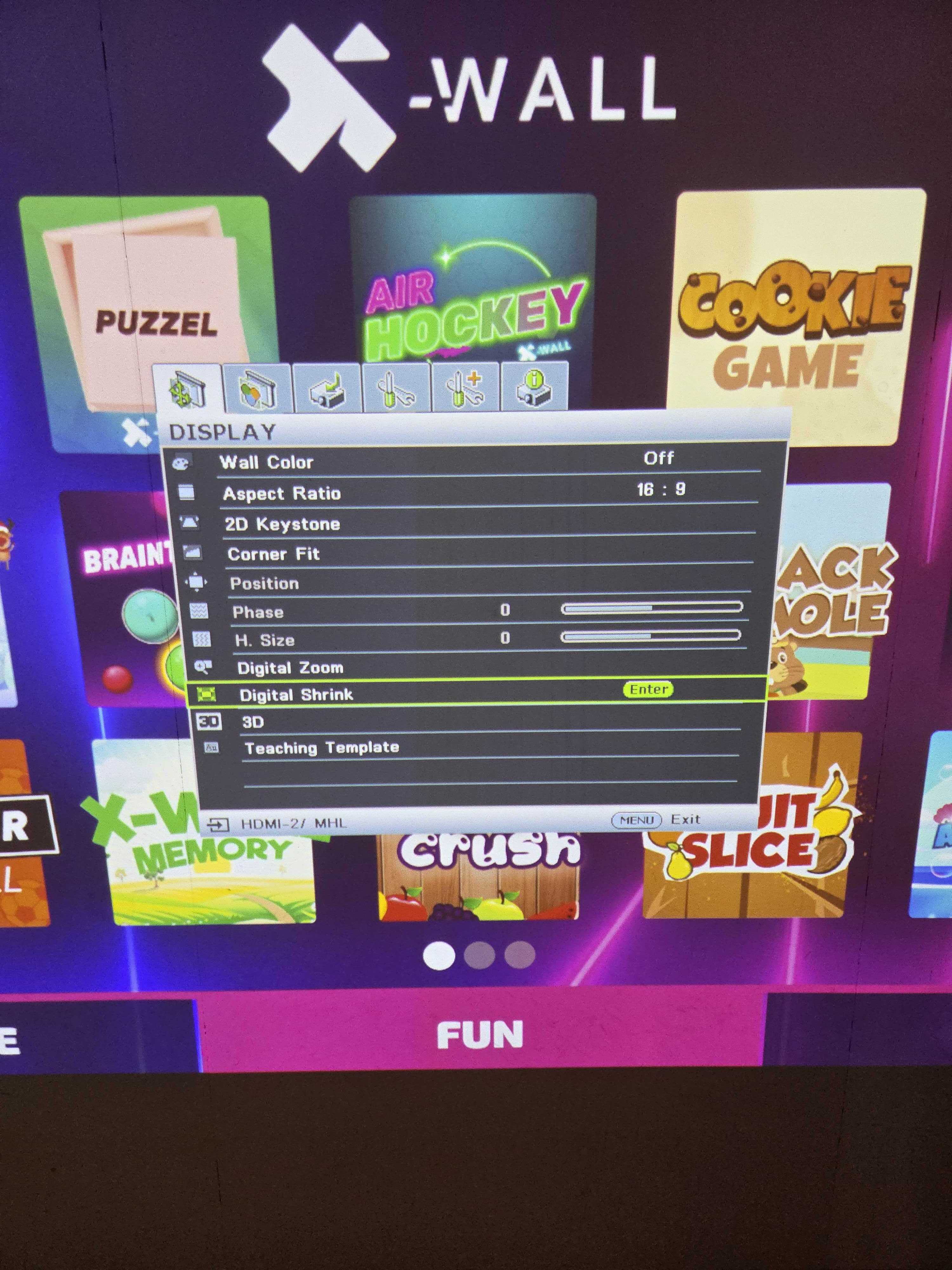
Step 2.
Use the arrow buttons on the remote control to navigate to “Digital Shrink” in the menu and press “OK.”
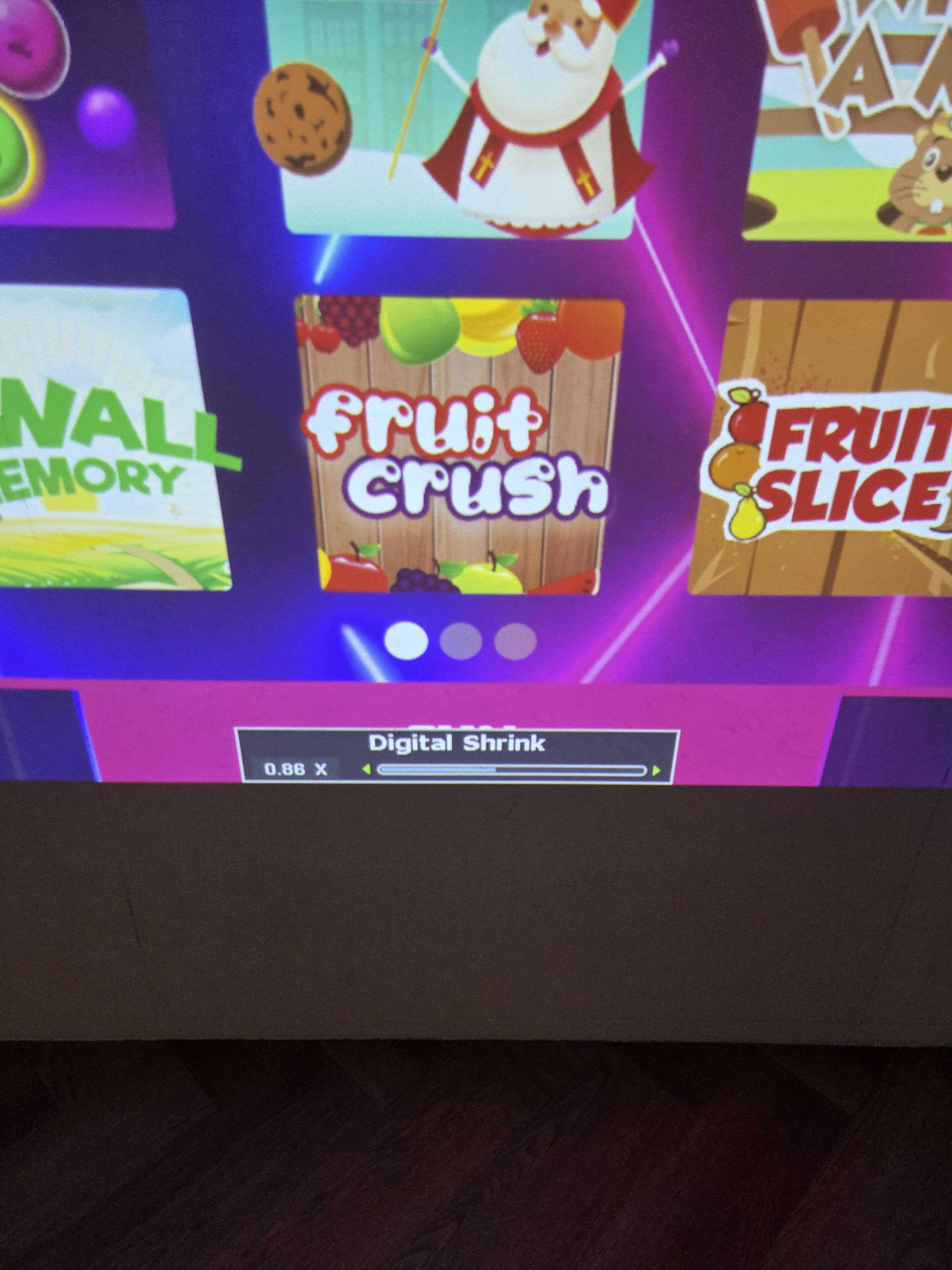
Step 3.
At the bottom of the image, you will now see a small bar indicating the current shrink value.
Use the left arrow button on the remote control to reduce the image size until the entire projection fits fully on the wall.
Was this article useful?
Your feedback helps us keep the Knowledge Base sharp.