


Computer is slow
Does the computer start up slowly, or does it take a long time before the X-Wall software launches?
In many cases, this can largely be improved by limiting the number of startup applications.
Step 1.
Use the computer keyboard and press the Windows key ( ) + D at the same time to exit the X-Wall software and go to the Windows desktop.
Step 2.
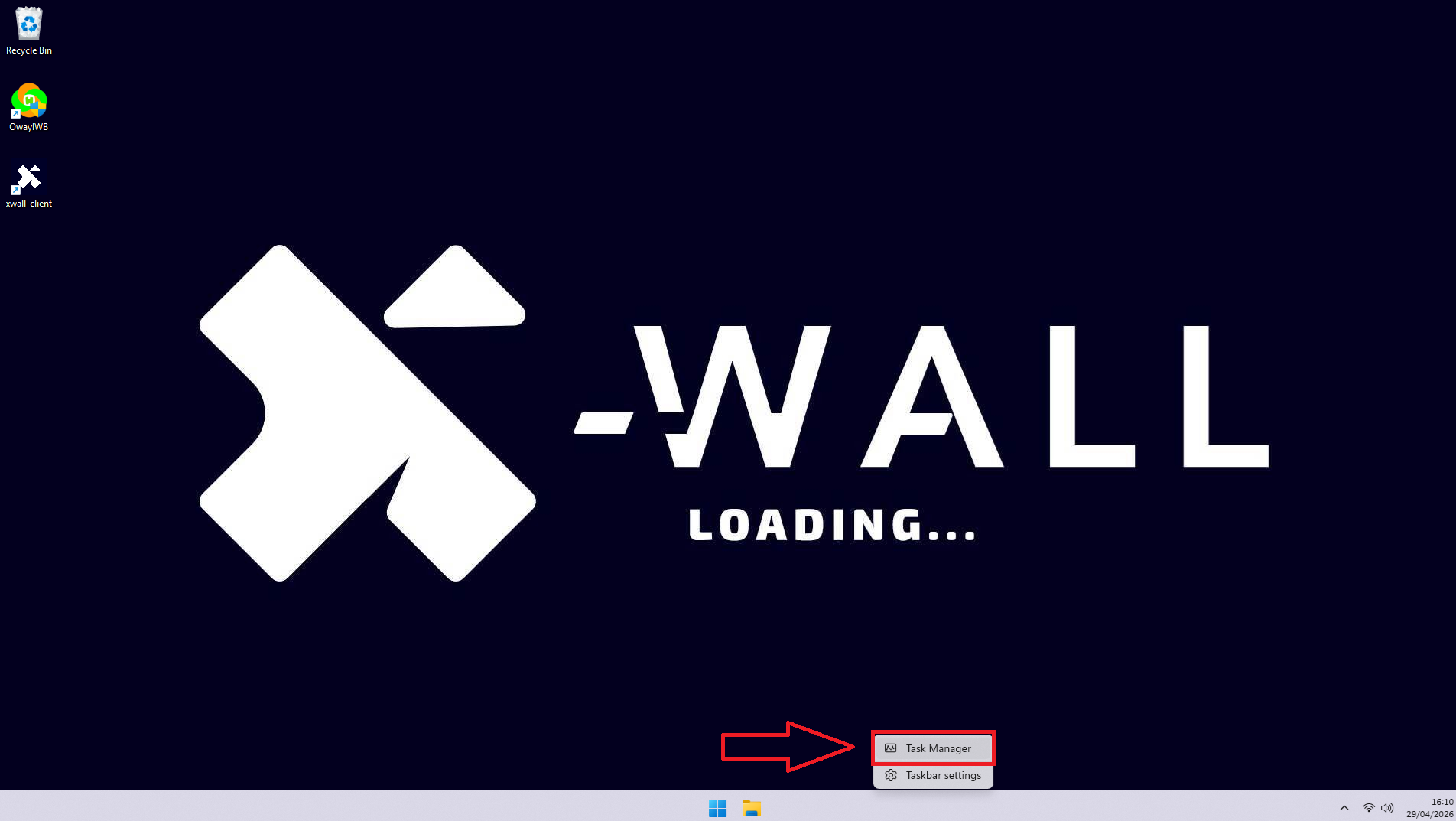
Move the mouse to the bottom of the screen and right-click the taskbar.
In the menu that appears, click “Task Manager.”
Step 3.
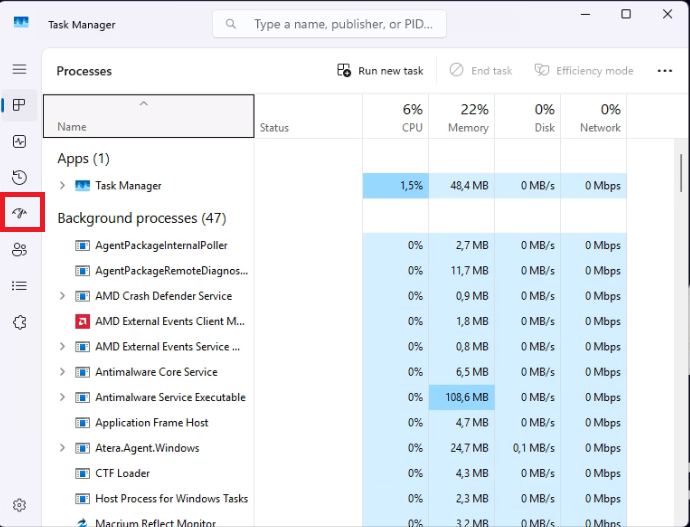
In the new window, click the “Startup” icon.
Step 4.
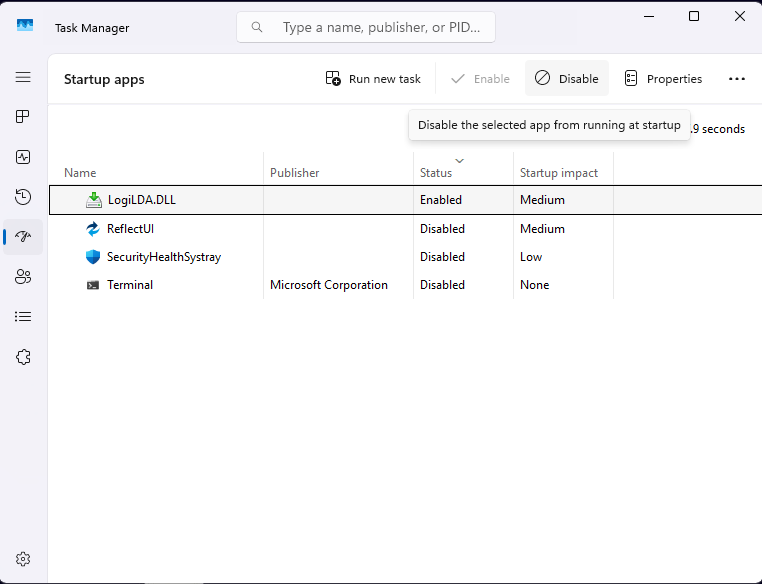
Sort the list by the Status column by clicking it once, so that all enabled applications are shown at the top.
Step 5.
Disable applications that are not regularly used.
Some examples of applications that can slow down startup and can safely be disabled are:
Microsoft Teams
Spotify
OneDrive
Xbox
Microsoft 365 Copilot
LogiLDA.DLL
SecurityHealthSystray.exe
Terminal
Power Automate Desktop
The following applications are required for the X-Wall to function properly and should never be disabled:
AnyDesk
OwayIWB
AteraAgent
X-Wall
Step 6.
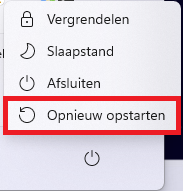
Restart the computer via: Start → Restart
Was this article useful?
Your feedback helps us keep the Knowledge Base sharp.