


Touch is not responding
If the touch functionality stops working after the wall has been hit by a ball, there is no need to panic right away. Follow the steps below to solve the problem yourself. In many cases, the issue can be resolved within a few minutes.
Step 1: Check the red line on the ceiling
At the front of the Portable unit, there is an invisible infrared sensor. Under normal circumstances, this sensor projects a red line onto the ceiling.
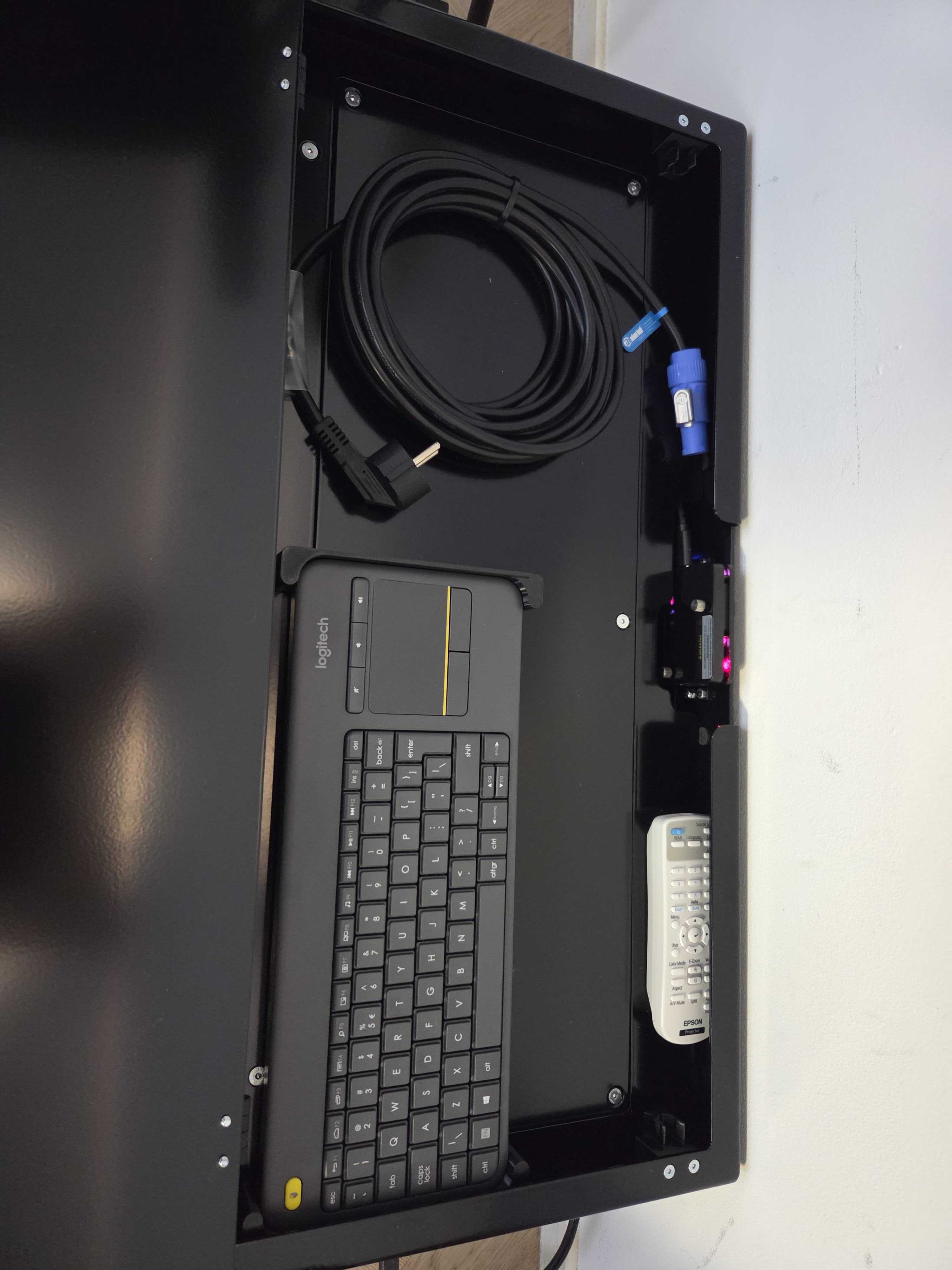
Do you not see a red line?
Carefully open the front cover of the X-Wall device.
Check above the device to see if you can spot a red light.
Look at the blue LED indicator on the sensor:
Blue LED is on: Press the black button on the right side of the LED.
Blue LED is off: Press the left button to switch the laser on.
Check the cables:
Make sure the power cable is securely connected (on the left side of the laser).
Check whether the USB and network cables are properly connected to the computer.
(To access these, unscrew the panel directly behind the laser.)
Step 2: Is the red line positioned correctly?
The line should:
Run parallel to the wall
Be positioned as close to the wall as possible on the ceiling
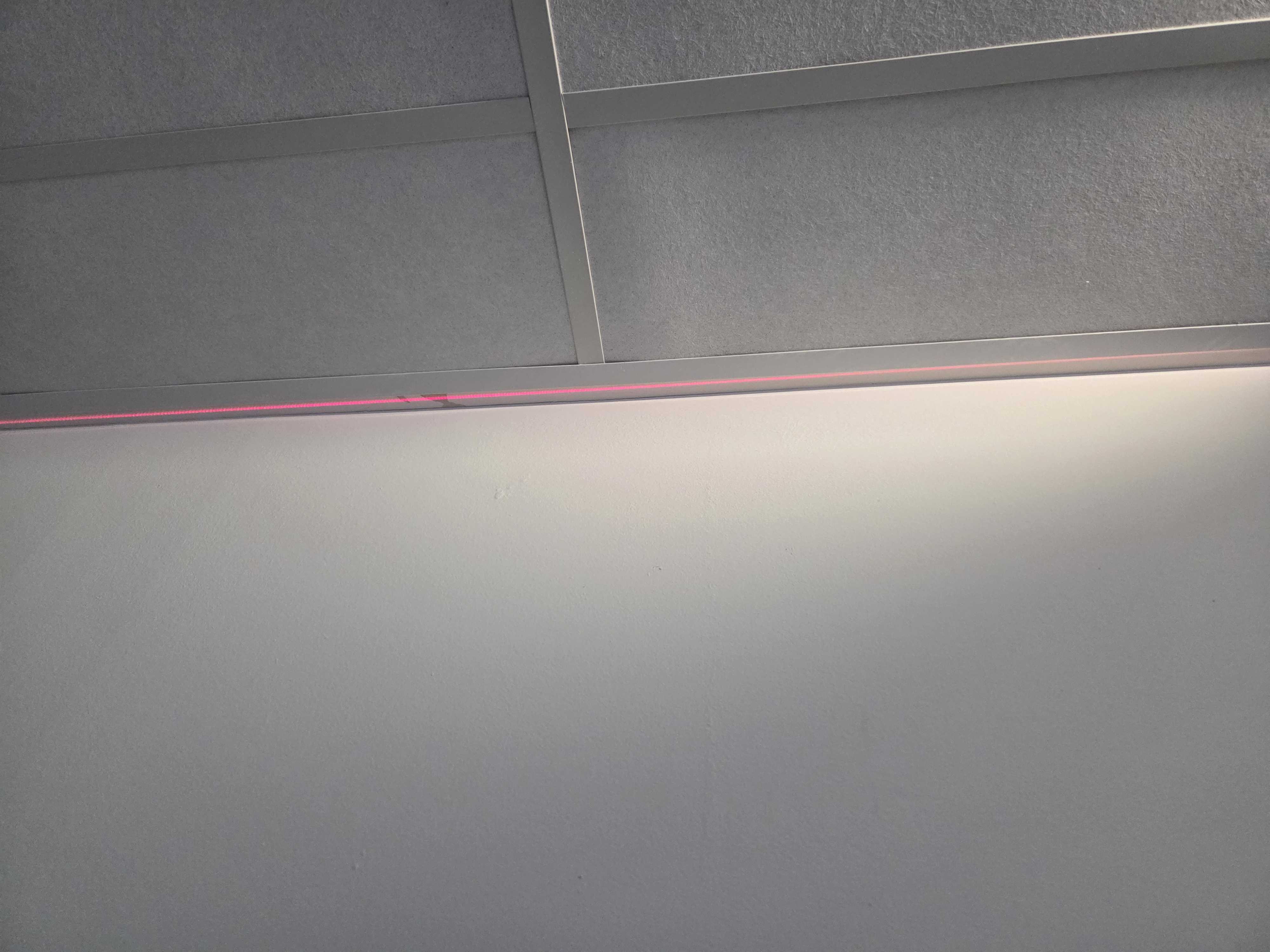
🔧 Is the alignment incorrect?
Remove the laser cover again.
Manually adjust the laser using the two adjustment knobs:
Top knob (grey): Tilts the laser angle.
Bottom-right knob (grey): Adjusts the distance between the laser and the wall.
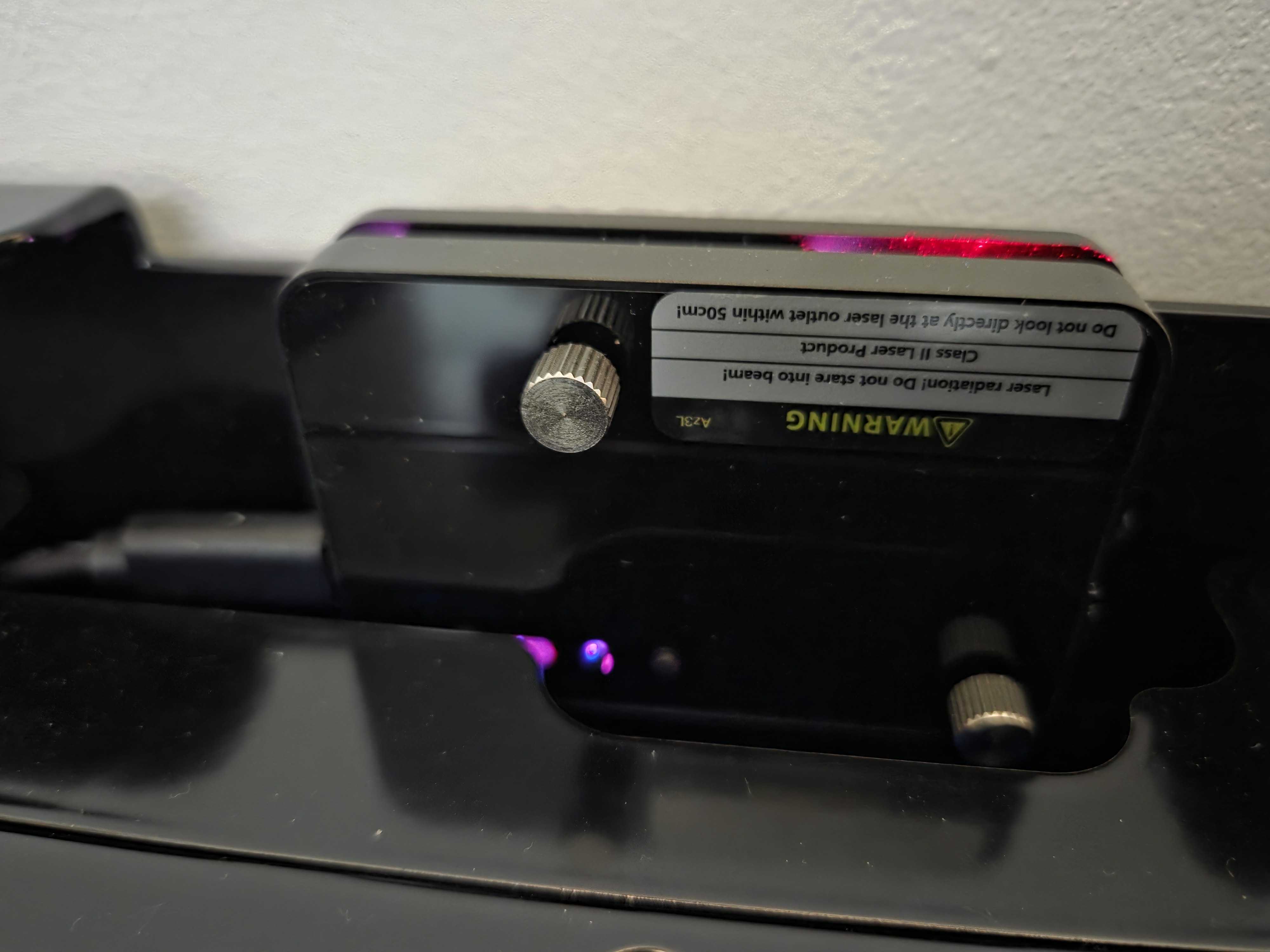
Step 3: Restart the system
If the red line is visible and correctly positioned, but the system is still not responding:
Use the computer keyboard
Press the Windows key (
 )
)Select Restart
Allow the system to fully restart and test the touch functionality again.
Step 4: Recalibrate the sensor
Sometimes the sensor needs to be recalibrated in order to correctly detect movements again.
Was this article useful?
Your feedback helps us keep the Knowledge Base sharp.