


White screen during gameplay
Are you getting a white screen during gameplay and is the X-Wall no longer responding?
In many cases, this happens because the game has crashed. There are 3 ways to solve this issue.
We would appreciate it if you could let us know when and in which game this occurred.
You can send an email to: support@interactivexwall.nl
Optie 1 - Minimize and reopen the game
Use the computer keyboard and press the Windows key ( ) + D at the same time to exit the X-Wall software and go to the Windows desktop.
Move the mouse to the X-Wall icon in the taskbar at the bottom of the screen and click on the game.
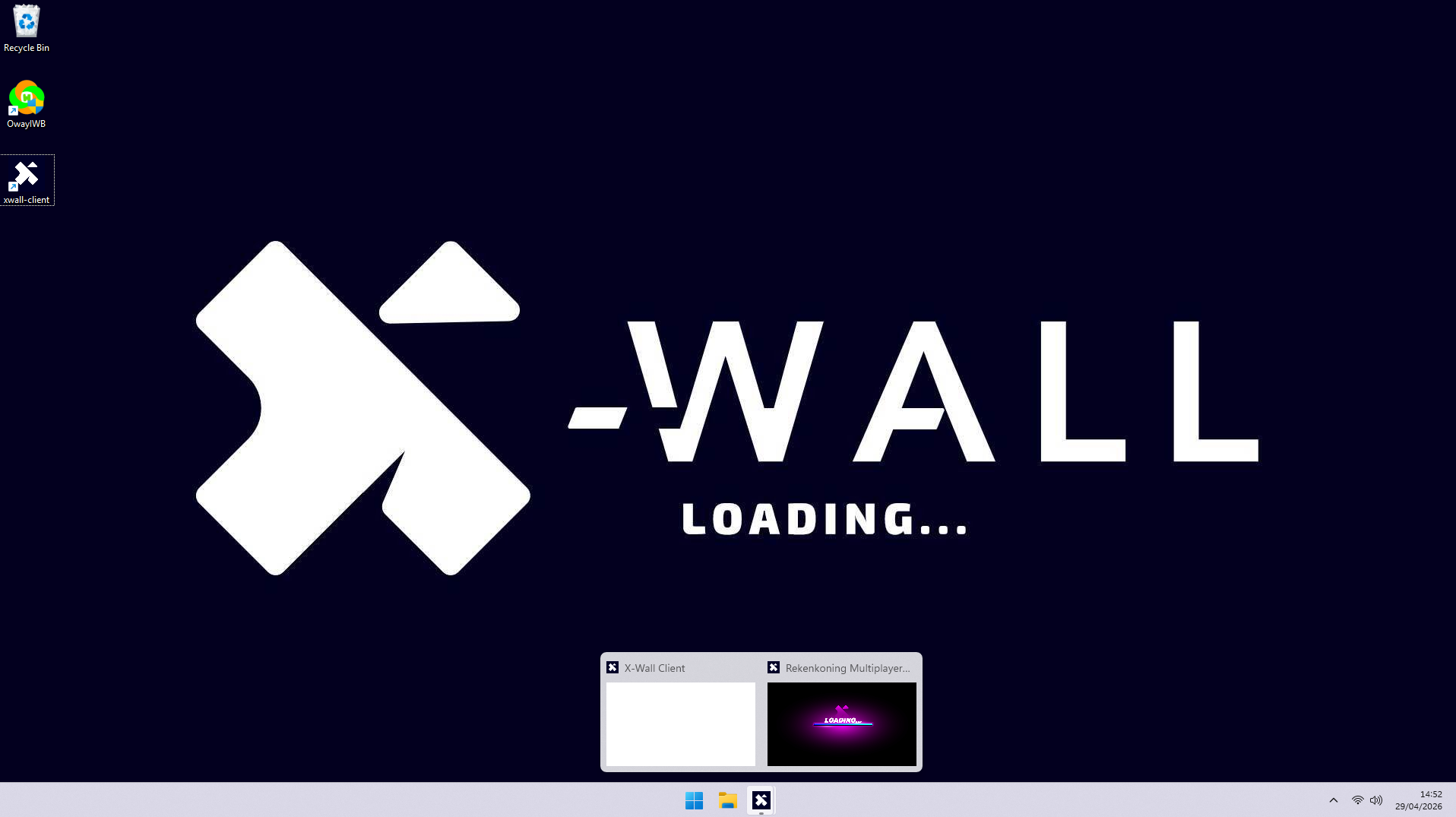
The game will reopen and should be playable again.
Optie 2 - Restart the X-Wall
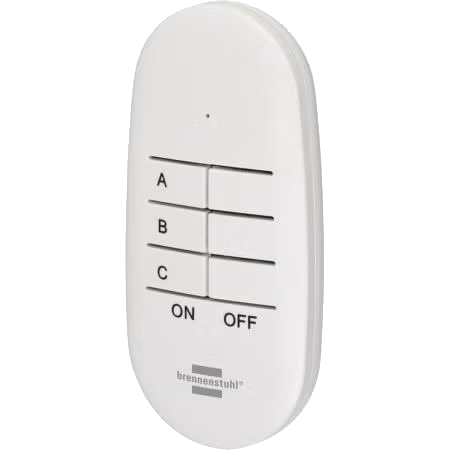
Use the remote control to turn the X-Wall off and on again.
Turn the X-Wall off, wait a few seconds, and then turn the system back on.
Wait about one minute for the system to fully restart.
Optie 3 - Restart the X-Wall software
Use the computer keyboard and press the Windows key ( ) + D at the same time to exit the X-Wall software and go to the Windows desktop.
Move the mouse to the X-Wall icon in the taskbar at the bottom of the screen, right-click the icon, and in the menu that opens, click “Close all windows.”
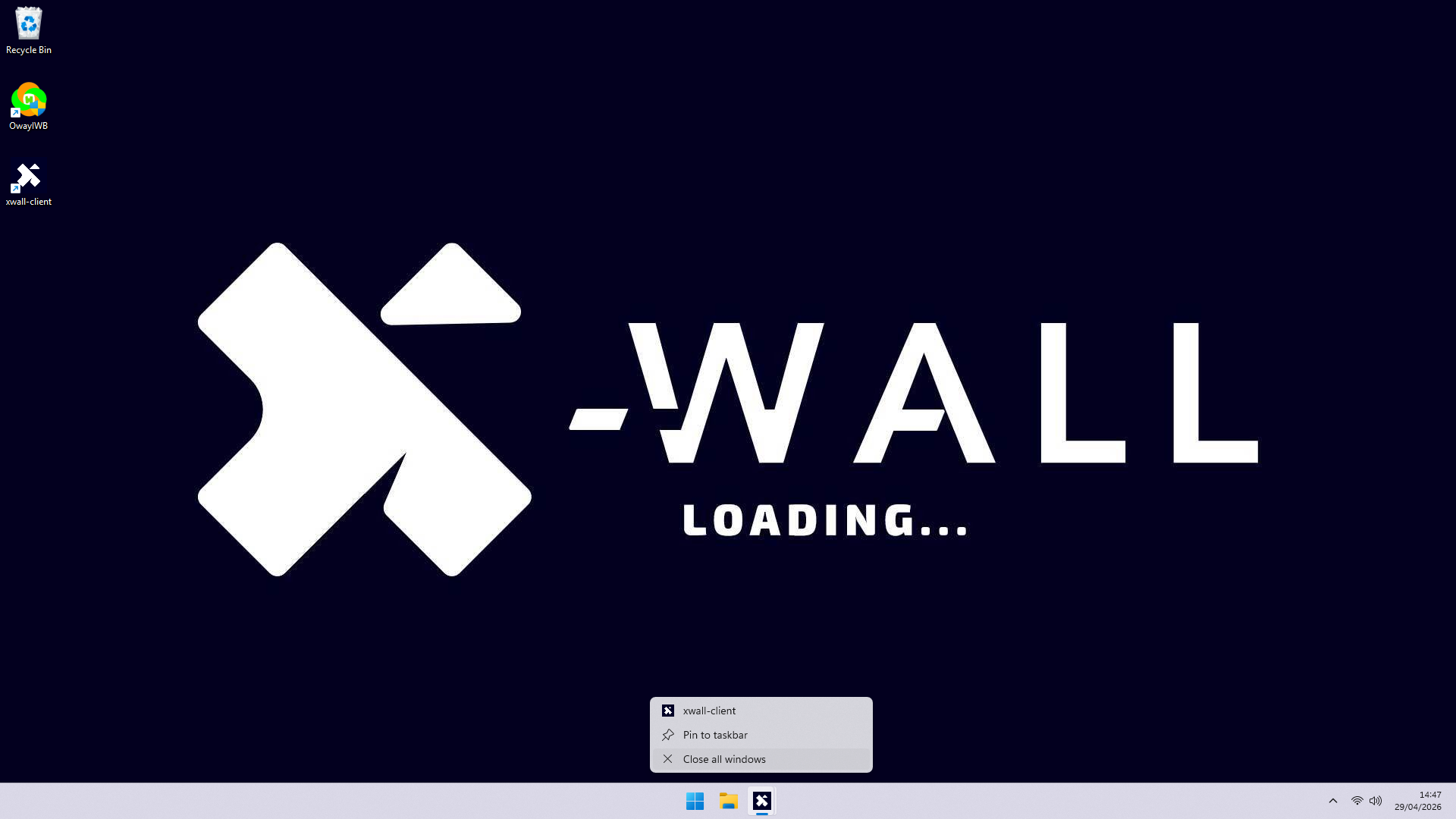
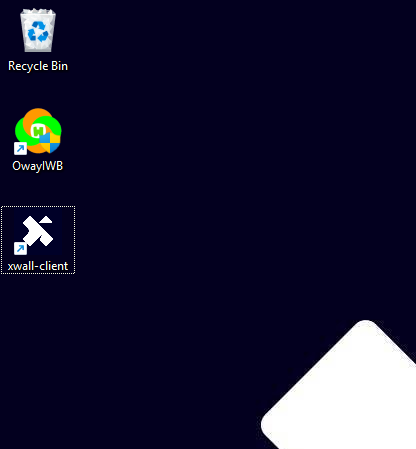
Then double-click the X-Wall icon on the desktop to restart the software.
Was this article useful?
Your feedback helps us keep the Knowledge Base sharp.